Fitbit Clockfaces for all Versa, Sense and Iconic Smartwatches
Fitbit Clockfaces Versa, Sense
Fitbit Clockfaces All Versa & Sense Watches
BY FIVEONES - ALL PACKAGES CONTAINS MULTIPLE BACKGROUND IMAGES
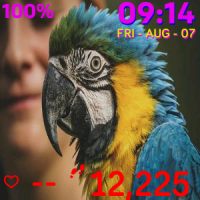
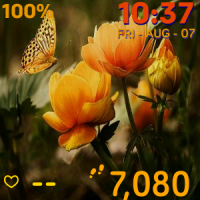
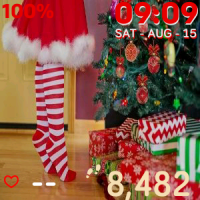
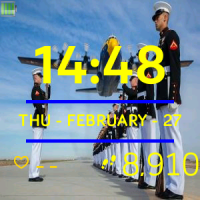
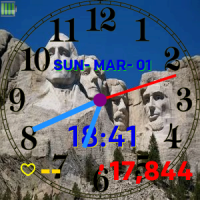
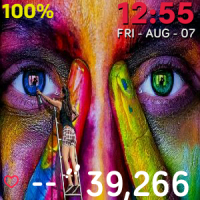
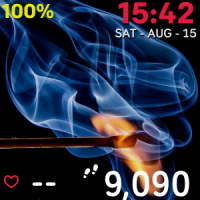
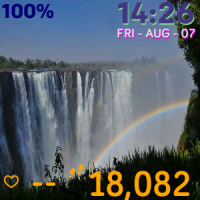
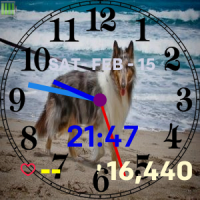
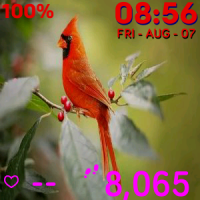
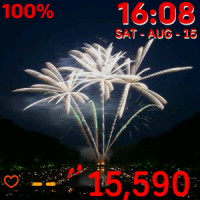
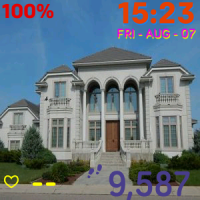
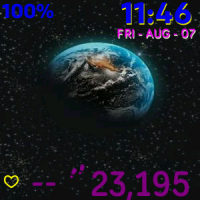
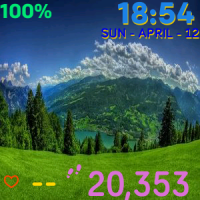
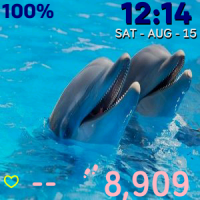
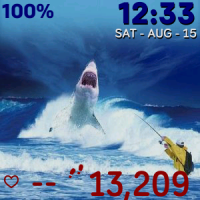
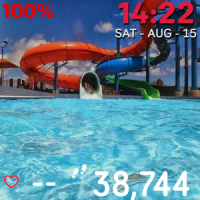
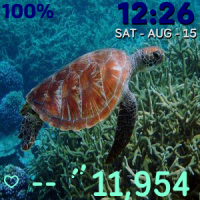
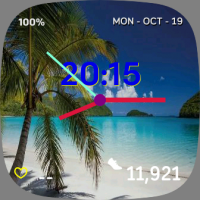
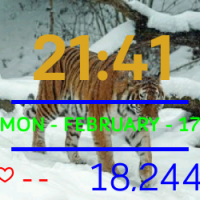
Package 1
Qty-1100
Fitbit
Clockfaces
Exclusive offer
$ 20
- For Fitbit
- Smart Watches
- Versa3
- Versa4
- Sense
- Sense4
Package 2
Qty-1200
Fitbit
Clockfaces
Exclusive offer
$ 20
For Fitbit
- Smart Watches
- Versa
- Versa2
- Versa Lite
- Iconic
Cutting Edge Options within these Clockfaces or your moneyback guaranteed!
To View All This Developers "Fiveones" Clockfaces Click Here
Our clockfaces are somewhat special in that you can change the background images for your smartwatch by just touching a certain place on your smartwatch (by tapping on the upper left corner of the smartwatch screen will change your background image).
This package stores all Clockfaces images on your smartwatch for easy switching of background picture (switches image in less than 1 second).
To change steps, calories, distance, activity-time or any other activity on your smartwatch just touch screen activity area with your fingertip on any activity ICON. By just touching the smartwatches screen activity area will rotate to the next activity ICON.
To change text colors of (time, date, steps, calories, distance & activity-time or analog clockface hands), is accomplished from your phone or digital device and through using your fitbit app.
Each clockface package will have a minimum of 9 clockface background images and a maximum of 45 clockface background images. All background images are rotatable from the clockface screen with your fingertip. All changing of clockface background images are random within your package.
All clockfaces displays battery power data and heart rate data.
Analog clockfaces will have hands and some will have both analog and digital readouts.
All clockfaces will have a one blank image for extreme sunlight areas (just rotate random images until you find the blank background image).
Technical Support
Change the clock face
The Fitbit Gallery offers a variety of clock faces to personalize your watch.
From the Today tab in the Fitbit app, tap your profile picture Sense tile.
Tap Gallery Clocks tab.
Browse the available clock faces. Tap a clock face to see a detailed view.
Tap Install to add the clock face to Sense.
Save up to 5 clock faces to switch between them:
When you select a new clock face, it’s automatically saved unless you already have 5 saved clock faces.
To see your saved clock faces from your watch, open the Clocks app and swipe to find the clock face you want to use. Tap to select it.
You can also press and hold your finger on your current clock face to open the Clocks app .
To see your saved clock faces in the Fitbit app, tap the Today tab your profile picture your device image Gallery. See your saved clock faces in My Clock Faces.
To remove a clock face, tap the clock face Remove clock face.
To switch to a saved clock face, tap the clock face Select.
Open apps
From the clock face, swipe left to see the apps installed on your watch. To open an app, tap it.
Organize apps
To change the placement of an app on Sense, press and hold an app until it's selected, and drag it to a new location. The app is selected when the icon increases slightly in size and the watch vibrates.
Remove apps
You can remove most apps installed on Sense:
From the Today tab in the Fitbit app, tap your profile picture Sense tile.
Tap Gallery.
Tap the app you want to remove. You might need to swipe up to find it.
Tap Uninstall.
Download additional apps
From the Today tab in the Fitbit app, tap your profile picture Sense tile.
Tap Gallery Apps tab.
Browse the available apps. When you find one you want to install, tap it.
Tap Install to add the app to Sense.
For more information, see the related help article.
Update apps
Apps update over Wi-Fi as needed. Sense searches for updates when plugged into the charger and in range of your Wi-Fi network.
You can also manually update apps:
From the Today tab in the Fitbit app, tap your profile picture Sense tile.
Tap Gallery. Find the app you want to update. You might need to swipe up to find it.
Tap the Update button next to the app.
Adjust app settings and permissions
Many apps include options to adjust the notifications, allow certain permissions, and customize what it displays. Note that turning off any app permissions might cause the app to stop functioning.
To access these settings:
With your watch nearby, in the Fitbit app, tap the Today tab your profile picture your device image.
Tap Gallery.
Tap the app or clock face whose settings you want to change. You might need to swipe up to see some apps.
Tap Settings or Permissions.
Tap the back arrow when you're done making changes.
Restart the Fitbit app on your phone, and make sure it syncs with your watch. Check the Clock Faces section of the Fitbit app and ensure that the new clockface installs correctly. If you still can't get it going, you'll need to get rid of the errant clockface so a fresh try can be made.
A quick solution that sometimes works is to use the Clocks app on your watch to select a different clockface, and then reselect the one you want.
If that doesn't work, try this longer version:
Force-close the Fitbit app on your phone, and leave it closed.
Start the Clocks app on your watch, and switch to the clockface you're trying to install.
Restart the Fitbit app on your phone, and make sure it syncs with your watch.
Check the Clock Faces section of the Fitbit app and ensure that the new clockface installs correctly.
If you still can't get it going, you'll need to get rid of the errant clockface so a fresh try can be made. Here's how:
Force-close the Fitbit app on your phone, then restart it. Alternatively, shut down and restart your phone and watch, then restart them.
If the Clocks section of the Fitbit app offers to attempt to continue the installation, select 'later'.
If selecting 'later' doesn't stop the installation, you'll need to try shutting things down again. You can't proceed until the installation progress bar has stopped.
Instead of attempting to reinstall the clockface you're having trouble with, install a simpler clockface (such as one of those developed by Fitbit).
Use the Fitbit app to remove the clockface that you couldn't install.
Try to install that clockface again.
It's possible that the installation will fail a second time. If so, try again.
If you know of any other possible solutions, please post them here!
.png)
A great place to view thousands of fitbit clockfaces at great prices.
ReplyDelete